
Overview
This article explains how first-time users can log in to Cortx using their organization’s registered Identity Provider (IdP). In Cortx enterprise environments, authentication is handled exclusively through CyberArk, ensuring centralized identity control, security, and compliance.
Users do not create separate Cortx credentials. Access is granted based on identity and permissions managed in CyberArk.
Prerequisites
Before attempting to log in, ensure the following:
Your organization uses CyberArk as its Identity Provider for Cortx.
Your corporate identity has been provisioned in CyberArk.
You have been granted access to the Cortx application within CyberArk.
Required roles and groups have been mapped by your Cortx or IAM administrator.
You can successfully authenticate to CyberArk.
How Login Works in Cortx (CyberArk Only)
Cortx relies entirely on CyberArk for authentication and user identity validation.
Key characteristics:
No email/password login within Cortx
No social login options
Authentication, MFA, and session policies are enforced by CyberArk
Cortx consumes identity, role, and group claims from CyberArk
Step-by-Step: Logging into Cortx via CyberArk
Step 1: Access the Agent
Navigate to the Cortx application URL provided by your organization.
You will not see a traditional login form.
Step 2: Redirect to CyberArk
Cortx automatically redirects you to the CyberArk login page.
This ensures all authentication happens through your organization’s approved identity system.
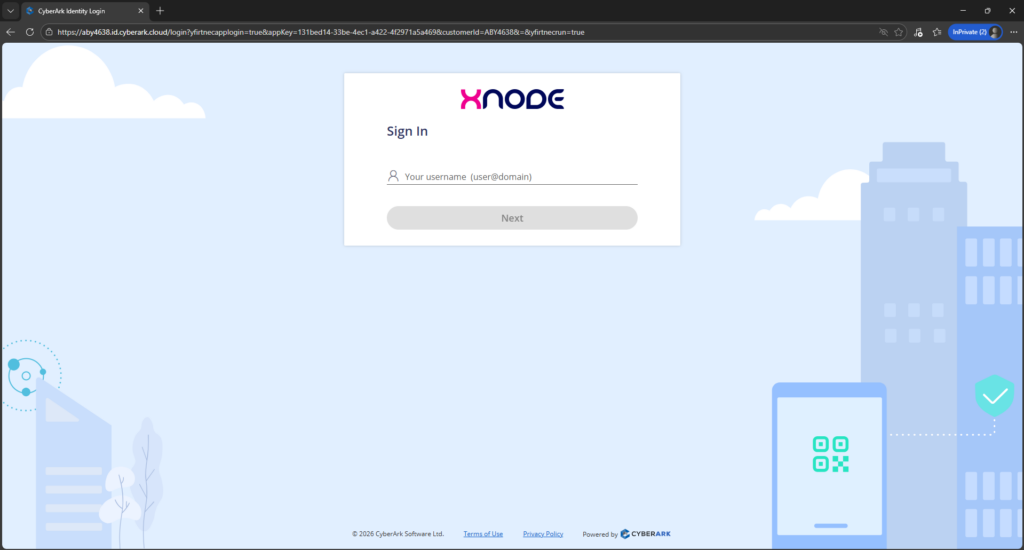
Step 3: Authenticate with CyberArk
Log in using your corporate credentials.
Depending on your organization’s security policies, you may be required to:
Complete Multi-Factor Authentication (MFA)
Verify device or location
Satisfy conditional access rules
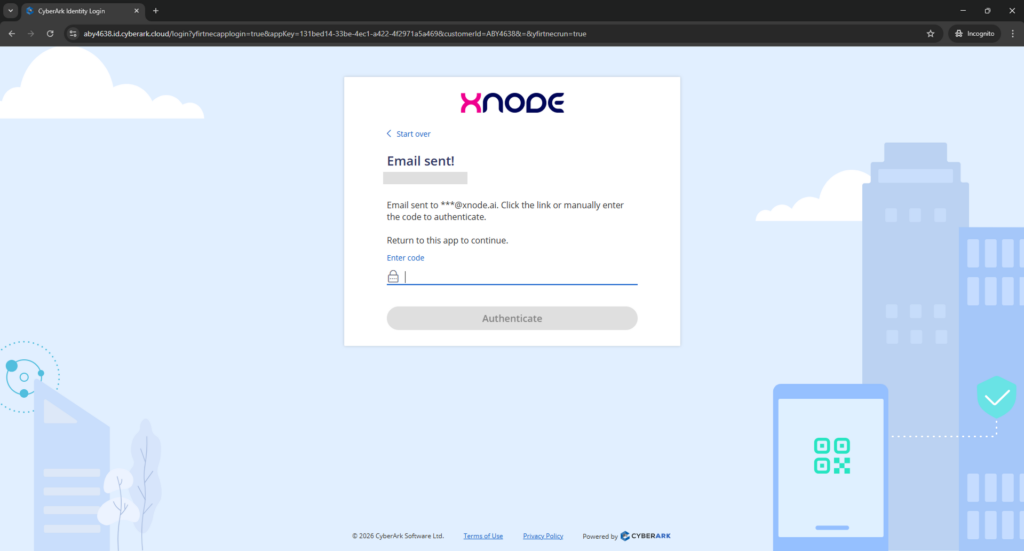
Step 4: Identity & Access Validation
After successful authentication:
CyberArk validates your identity
Cortx receives identity assertions (user, groups, roles)
Workspace and access mappings are applied automatically
If you have access to multiple Cortx workspaces, selection may be prompted.
Step 5: Land on the Cortx Home Screen
Once validation is complete, you are redirected to the Cortx Home screen.
This confirms successful login and access provisioning.
What Happens After Login (Behind the Scenes)
When logging in via CyberArk, Cortx performs the following:
Accepts authentication tokens from CyberArk
Maps the user to the correct organization and workspace
Applies role-based access control (RBAC)
Loads permitted apps, agents, workflows, and resources
Enforces permission-aware navigation and visibility
All access decisions are derived from CyberArk-managed identity data.
Understanding the Cortx Home Screen
The Home screen acts as the central entry point into Cortx.
Users will see:
Only apps and modules they are authorized to access
Workspace-level navigation
Recent or active items relevant to their role
The Home screen dynamically adapts based on identity, role, and group mappings from CyberArk.
Best Practices
Always access Cortx through the official enterprise URL.
Do not bookmark CyberArk redirect URLs; bookmark the Cortx application URL instead.
Ensure role and group assignments are correct in CyberArk before logging in.
Report access issues to your IAM or Cortx administrator rather than attempting re-registration.
Troubleshooting
Unable to Log In
Confirm you can successfully log in to CyberArk.
Ensure Cortx access has been assigned to your identity in CyberArk.
Check whether MFA or conditional access policies are blocking login.
Logged In but Missing Features
Feature visibility depends on role and group mappings.
Cortx does not allow manual permission overrides.
Contact your administrator to review access assignments in CyberArk.