
Azure DevOps Services | Azure DevOps Server 2022 | Azure DevOps Server 2020
A personal access token (PAT) serves as an alternative password for authenticating into Azure DevOps. This PAT identifies you and determines your accessibility and scope of access. Treat PATs with the same level of caution as passwords.
When you use Microsoft tools, your Microsoft account or Microsoft Entra ID is recognized and supported. If you use tools that don’t support Microsoft Entra accounts, or if you prefer not to share your primary credentials, consider using PATs as an alternative authentication method. We recommend that you use Microsoft Entra tokens instead of PATs whenever possible.
Prerequisites
| Category | Requirements |
|---|---|
| Permissions | Permission to access and modify your user settings where PATs are managed. – Go to your profile and select User settings > Personal access tokens. If you can see and manage your PATs here, you have the necessary permissions. – Go to your project and select Project settings > Permissions. Find your user account in the list and check the permissions that are assigned to you. Look for permissions related to managing tokens or user settings. – If your organization has policies in place, an administrator might need to grant you specific permissions or add you to an allowlist to create and manage PATs. – PATs are connected to the user account that minted the token. Depending on the tasks the PAT performs, you might need more permissions yourself. |
| Access levels | At least Basic access. |
| Tasks | Use PATs only when necessary and always rotate them regularly. See the section Best practices for using PATs. |
Create a PAT
- Sign in to your organization (
https://dev.azure.com/{Your_Organization}). - From your home page, open user settings
 and select Personal access tokens.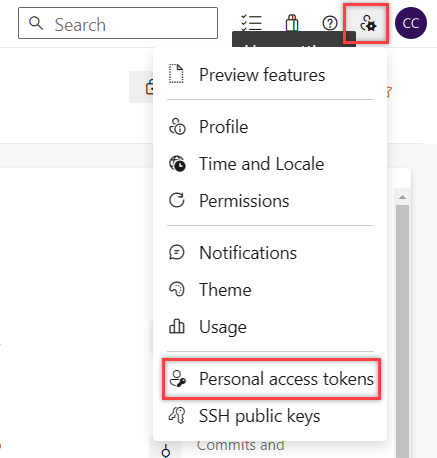
- Select + New Token.
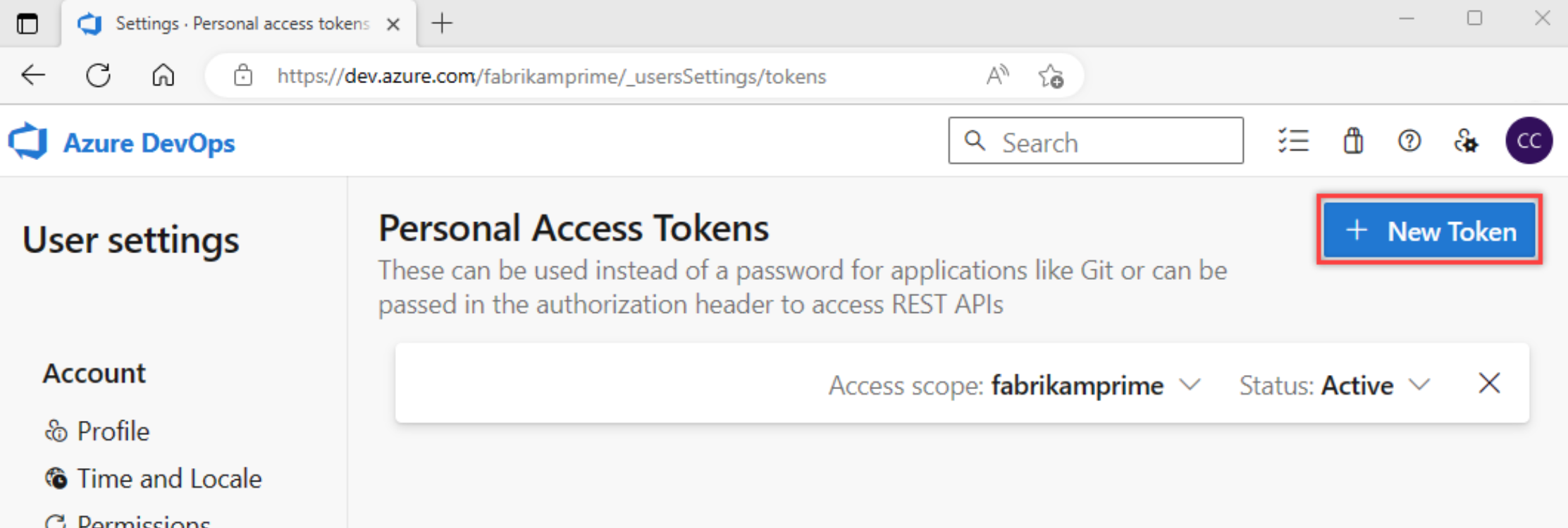
- Name your token, select the organization where you want to use the token, and then set your token to automatically expire after a set number of days.

- Select the scopes for this token to authorize for your specific tasks. For example, to create a token for a build and release agent to authenticate to Azure DevOps, set the token’s scope to Agent Pools (Read & manage). To read audit log events and manage or delete streams, select Read Audit Log, and then select Create.
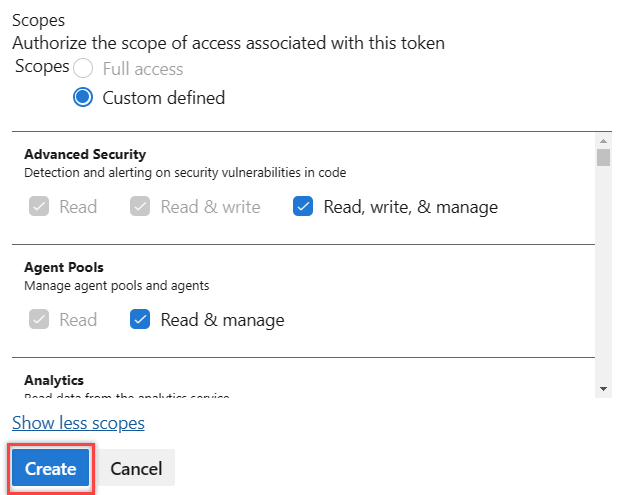
Your administrator might restrict you from creating full-scoped PATs or limit you to packaging-scope PATs only. Reach out to your admin to get on the allowlist if you need access to more scopes. Some scopes, for example,vso.governance, might not be available in the user interface (UI) if they aren’t for widespread public use. - When you’re finished, copy the token and store it in a secure location. For your security, it doesn’t display again.
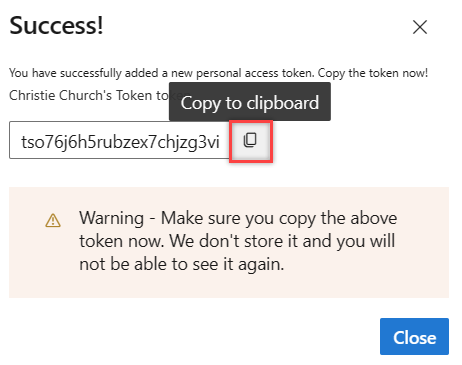
You can use your PAT anywhere that your user credentials are required for authentication in Azure DevOps. Remember:
- Treat a PAT with the same caution as your password, and keep it confidential. Do not share PATS.
- For organizations that are backed by Microsoft Entra ID, you must sign in with your new PAT within 90 days or it becomes inactive. For more information, see User sign-in frequency for conditional access.
Use a PAT
Your PAT serves as your digital identity, much like a password. You can use PATs as a quick way to do one-time requests or prototype an application locally. Use a PAT in your code to authenticate REST API requests and automate workflows by including the PAT in the authorization header of your request.
After your app code is working, switch to Microsoft Entra OAuth to acquire tokens for your app’s users or a service principal or managed identity to acquire tokens as an application. We don’t recommend that you keep running apps or scripts with PATs long term. You can use Microsoft Entra tokens anywhere that a PAT is used.
Consider acquiring a Microsoft Entra token via the Azure CLI for ad hoc requests.
Modify a PAT
Do the following steps to:
- Regenerate a PAT to create a new token, which invalidates the previous one.
- Extend a PAT to increase its validity period.
- Alter the scope of a PAT to change its permissions.
- From your home page, open user settings and select Personal access tokens.
- Select the token that you want to modify, and then select Edit.
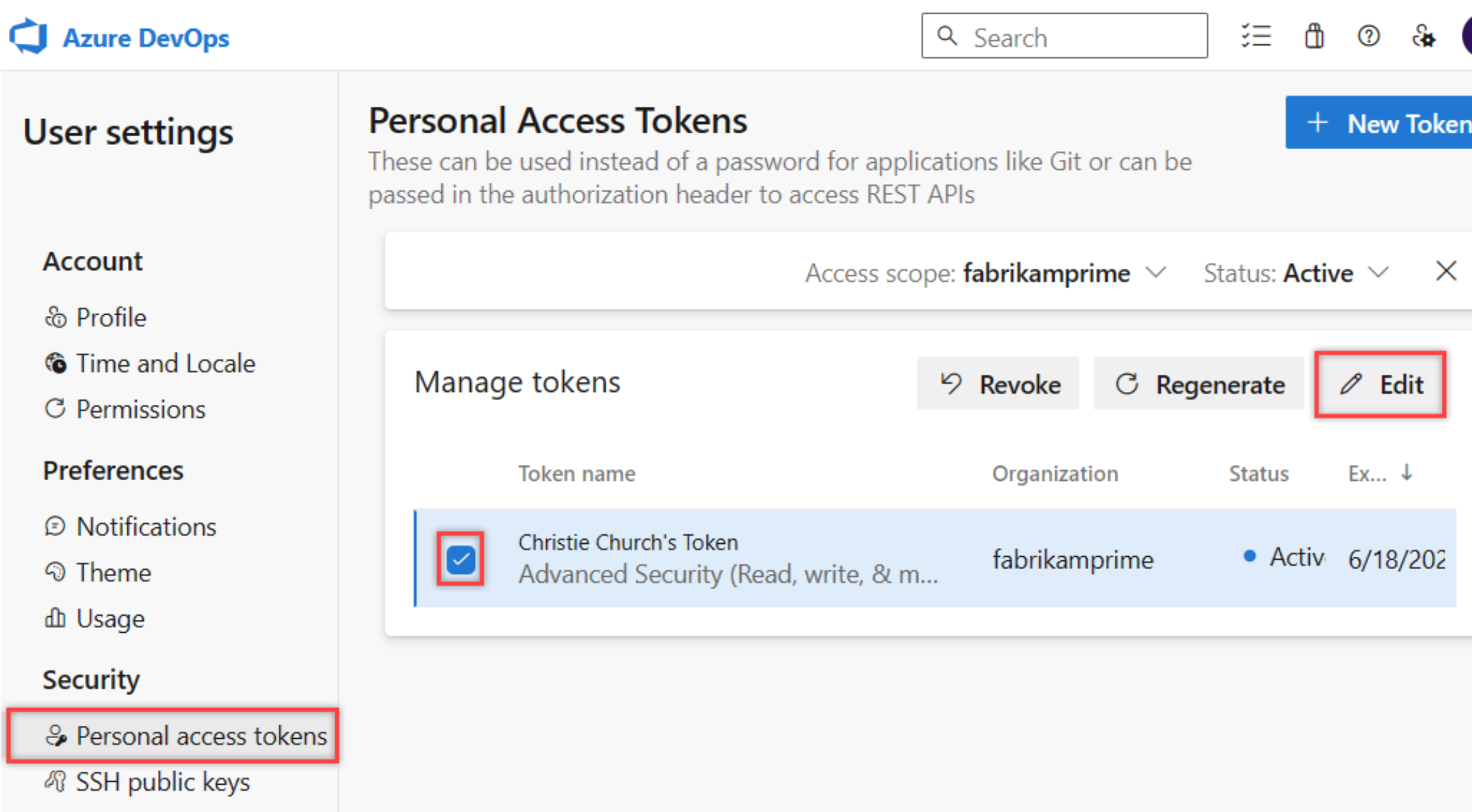
- Edit the token name, token expiration, or the scope of access associated with the token, and then select Save.

Revoke a PAT
You can revoke a PAT at any time for these and other reasons:
- Security breach: Revoke a PAT immediately if you suspect it was compromised, leaked, or exposed in logs or public repositories.
- No longer needed: Revoke a PAT when the project, service, or integration for which it was created is finished or discontinued.
- Policy compliance: Revoke a PAT to enforce security policies, compliance requirements, or organizational token rotation schedules.
- User changes: Revoke a PAT when a team member leaves the organization or changes roles and no longer needs access.
- Scope reduction: Revoke and re-create a PAT with reduced permissions when you need to limit its access capabilities.
- Regular maintenance: Revoke a PAT as part of routine security hygiene and token lifecycle management.
To revoke a PAT, follow these steps:
In the Confirmation dialog, select Revoke.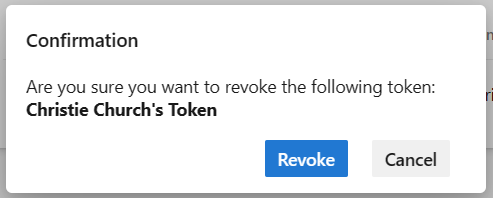
On your home page, open user settings and select Personal access tokens.
Under Security, select Personal access tokens. Select the token for which you want to revoke access, and then select Revoke.