
Signing Up for Cortx
To create a Cortx account, follow these steps:
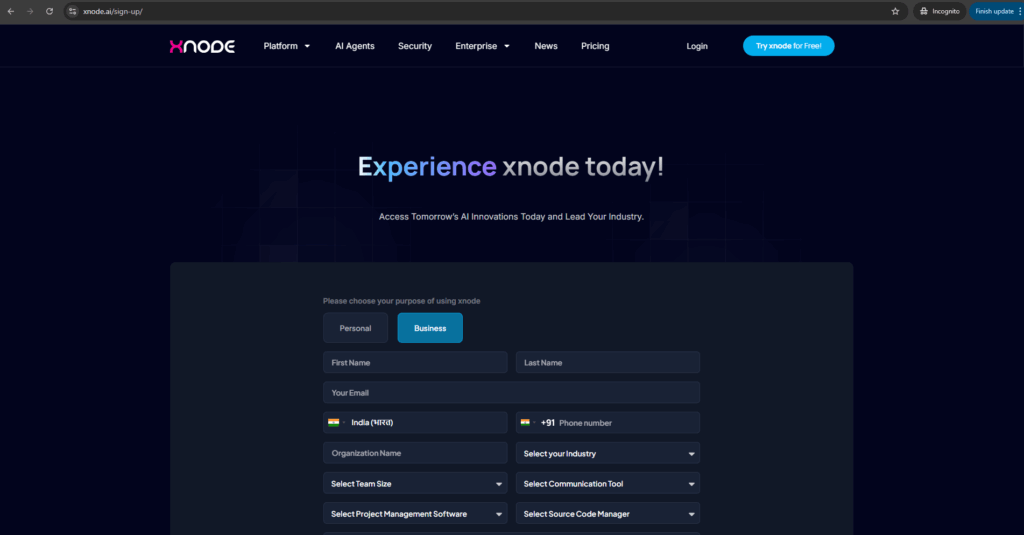
- Go to xnode.ai/sign-up
- Fill in the required details (name, email, and workspace preference).
- Click Submit to register.
- Your request will be reviewed, and you will receive a confirmation email if approved.
Account Approval & Setup
- Check your email for an approval notification from cortx.
- Click the Set Up Password link in the email.
- Create and confirm a strong password (include uppercase, lowercase, numbers, and special characters).
- Click Login to proceed.
🔹 Tip: If you don’t receive an approval email, check your spam folder or contact support.
Logging In & Verifying Access
You can access Cortx using either your email or connected accounts like Google, LinkedIn, or your company’s SSO.
- Go to xnode.ai/login.
- Choose Your Sign-In Method: cortx provides several ways to log in for your convenience
- Continue with Microsoft: Click to use your Microsoft account (e.g., Outlook).
- Continue with Google: Log in using your Google account credentials.
- Continue with Facebook: Use your Facebook account to sign in.
- Continue with LinkedIn: Sign in with your professional LinkedIn profile.
- Continue with X (formerly Twitter): Use your X (Twitter) credentials for quick access.
- Email and Password: Enter your email and password if you prefer to sign in manually.
- Single Sign-On (SSO): If your organization supports SSO, select this option to authenticate securely.
- OTP Verification (if applicable)
- If signing in with email, check your inbox for a One-Time Password (OTP), enter it on the screen, and complete the login process.
🔹 If you don’t receive an OTP, click Resend OTP.